Help Center
Training Station Setup
How to physically set up a Cogame training station — TV, computer, webcam, and lighting — so seniors can play comfortably and the camera reliably tracks their motion. (No special hardware — your existing PC and monitor become the station.)
Hardware checklist
- Display — TV or monitor at 1920×1080, 32" or larger preferred
- Computer — Windows, Mac, or ChromeOS with Chrome installed. Any computer made in the last 5 years works.
- Webcam — built-in laptop camera, USB webcam (Logitech C270/C920 are great), or TV-mounted camera
- HDMI cable — to connect computer to TV
- (Optional) Wireless keyboard/mouse — for staff to control between sessions
- (Optional) Speakers — most TVs already have decent speakers; otherwise USB speakers help
Room layout
Aim for a setup where the senior stands or sits about 1.5 to 2 meters (5–7 feet) away from the camera, with their full upper body visible.
Display height
- If seniors play seated, center the screen at seated eye height (around 110–125 cm / 43–49" from floor)
- If standing, center at standing eye height (150–165 cm / 59–65" from floor)
Floor space
- Clear at least 2 m × 2 m in front of the screen
- Keep the area free of trip hazards — cords, rugs, chairs the senior might bump into
- If the senior uses a walker or wheelchair, leave room for it without forcing them to lean
Camera placement
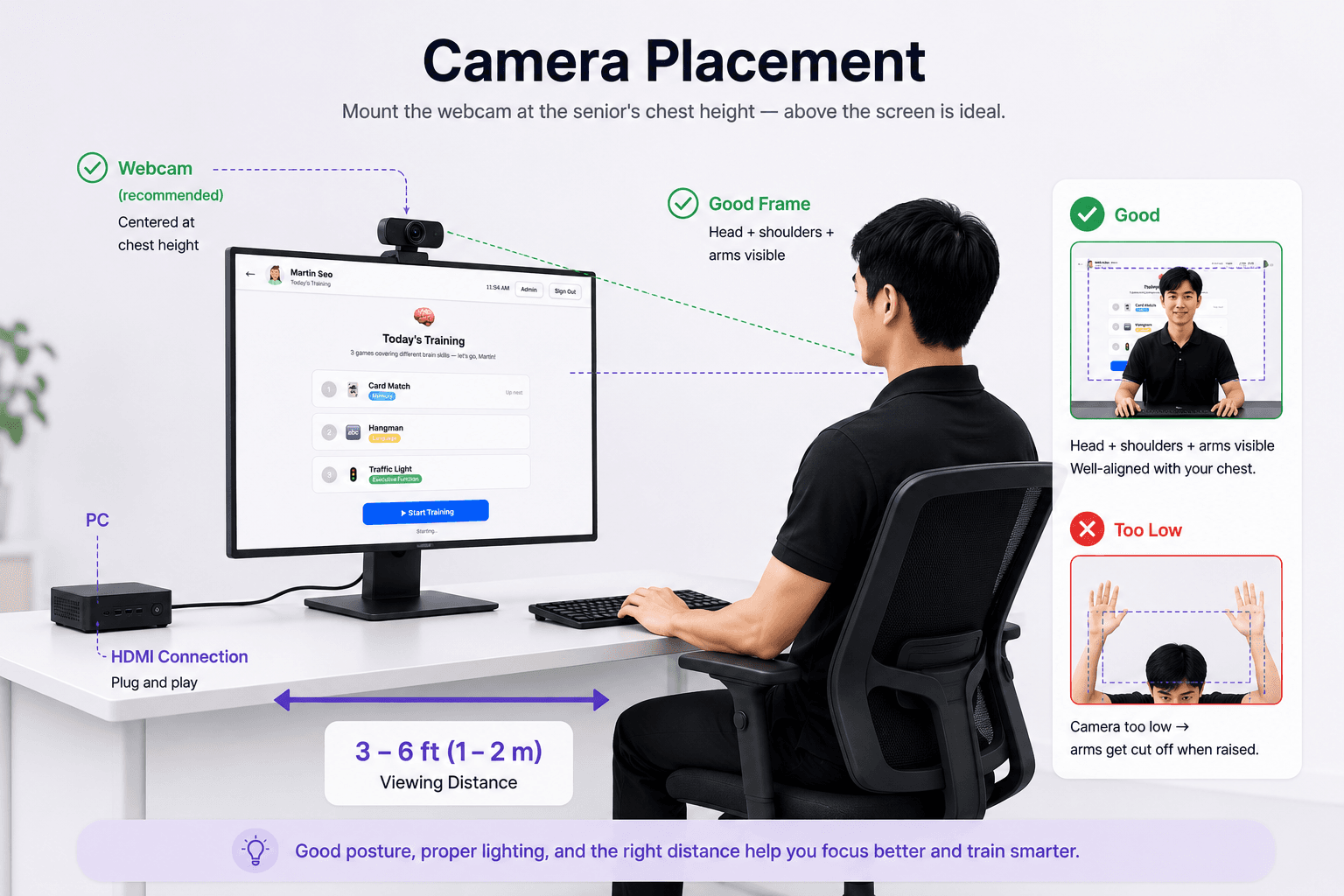
This is the single most important setup detail. Bad camera position is the #1 cause of gameplay frustration.
Position
- Center the camera horizontally with the screen, either on top (preferred) or directly under the TV
- Camera tilt: angled toward the senior, capturing from waist to slightly above the head
- The camera should "see" the senior's full upper body: head, shoulders, arms fully extended, and waist
Distance check
Stand where the senior would stand. Raise both arms straight out to your sides. If your fingertips are still inside the camera frame on the station preview, you're good. Adjust distance or zoom until both fingertips fit with a small margin.
Lighting
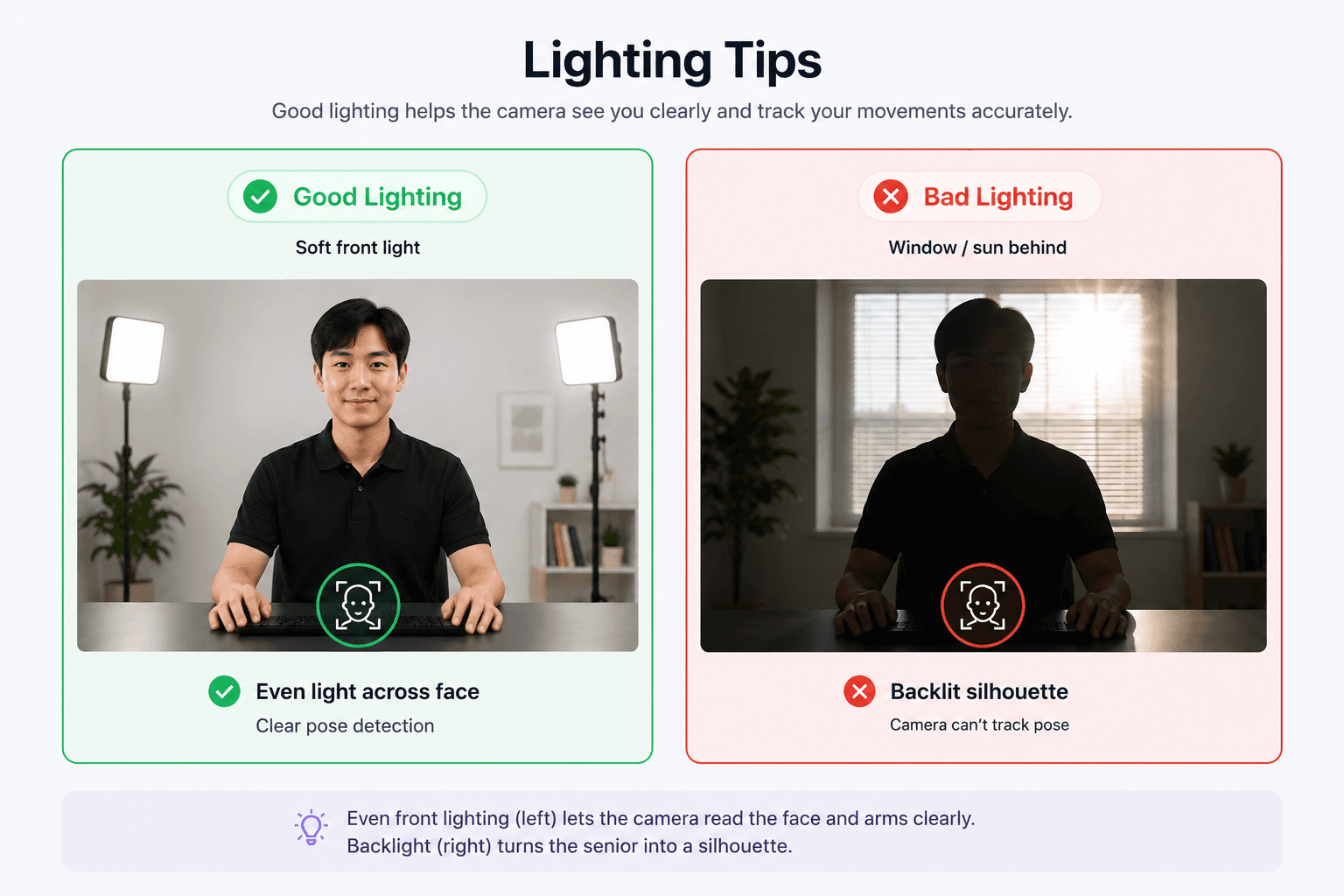
MediaPipe (the AI that tracks body motion) needs even lighting on the senior's front. Avoid:
- Backlight — windows behind the senior wash out the camera. Either close the blinds, move the station, or face the senior toward the window.
- Shadow on face — if a ceiling light is directly above, the eyes go dark. Add a soft front-fill (a lamp or window in front).
- Color mismatch — mixed warm/cool lighting can confuse skin-tone detection. Stick to one type.
A simple test: stand where the senior will stand, take a phone photo of yourself with the room lights as they'll be during sessions. If the photo looks clear to you, the camera will see you fine too.
Launching the training station
- Open Chrome on the station computer.
- Sign in to your admin account at
https://cogame.ai/login. - Click Training Station at the bottom of the admin sidebar (or go directly to
https://cogame.ai/play). - Grant the camera before going fullscreen. Pick any senior, start a game, and click Allow on Chrome's camera prompt. Chrome remembers this per device, so you only do it once — and doing it now means the prompt never has to appear in fullscreen or kiosk mode, where the address bar it anchors to is hidden.
If you accidentally choose Block, Cogame tells you and offers to continue with the mouse — but motion tracking stays off until you fix it. Re-allow it from the camera icon at the right of the address bar, then click Try again. - Press F11 for fullscreen.
- The senior profile picker appears. Done — your station is live.
Auto-launch on boot (optional, for dedicated stations)
For a dedicated station PC that should boot straight into Cogame, use Chrome's built-in fullscreen kiosk flag:
# Windows: create a shortcut with this target
chrome.exe --kiosk https://cogame.ai/play

# Mac (Terminal): launches Chrome locked to fullscreen
open -a "Google Chrome" --args --kiosk https://cogame.ai/play
Add the shortcut to your Startup folder (Windows) or Login Items (Mac) so it runs at boot. Use a Chrome profile that's already signed in and that has already allowed the camera — --kiosk hides the address bar the permission prompt anchors to, so grant it once in a normal window first.
For a fleet of stations, your IT admin can skip the prompt entirely with the Chrome enterprise policy VideoCaptureAllowedUrls set to https://cogame.ai. That pre-grants the camera for this site only, and needs no change on our side.
Common station issues
- Camera permission was denied — see Troubleshooting → Camera
- Game runs slow / lags — see Troubleshooting → Performance
- Senior's arm doesn't register — usually camera too low or too far. Re-check the distance test above.
- Screen turns off mid-session — disable display sleep in OS settings (Windows: Settings → System → Power; Mac: System Settings → Displays → Lock Screen)
Next
- Game Guide — coaching seniors through their first games
- Troubleshooting — when things go wrong
Still need help?
Email us at contact@cogame.ai — or use the in-app chat bubble if you're signed in. We typically reply within one business day.
Cogame v2026.09.09 · 8c96b34