Help Center
Getting Started
From signup to your first participant playing — about 15 minutes total. No special equipment beyond a computer and a webcam.
What you'll need
- A computer running Chrome (Windows, Mac, or ChromeOS)
- A standard webcam — built-in laptop camera is fine, USB webcam works too
- A monitor or TV at least 27" (32" or larger recommended for the training station)
- A center email address you can open — we send a verification link to it
- About 15 minutes
Step 1 — Create your account and verify your email
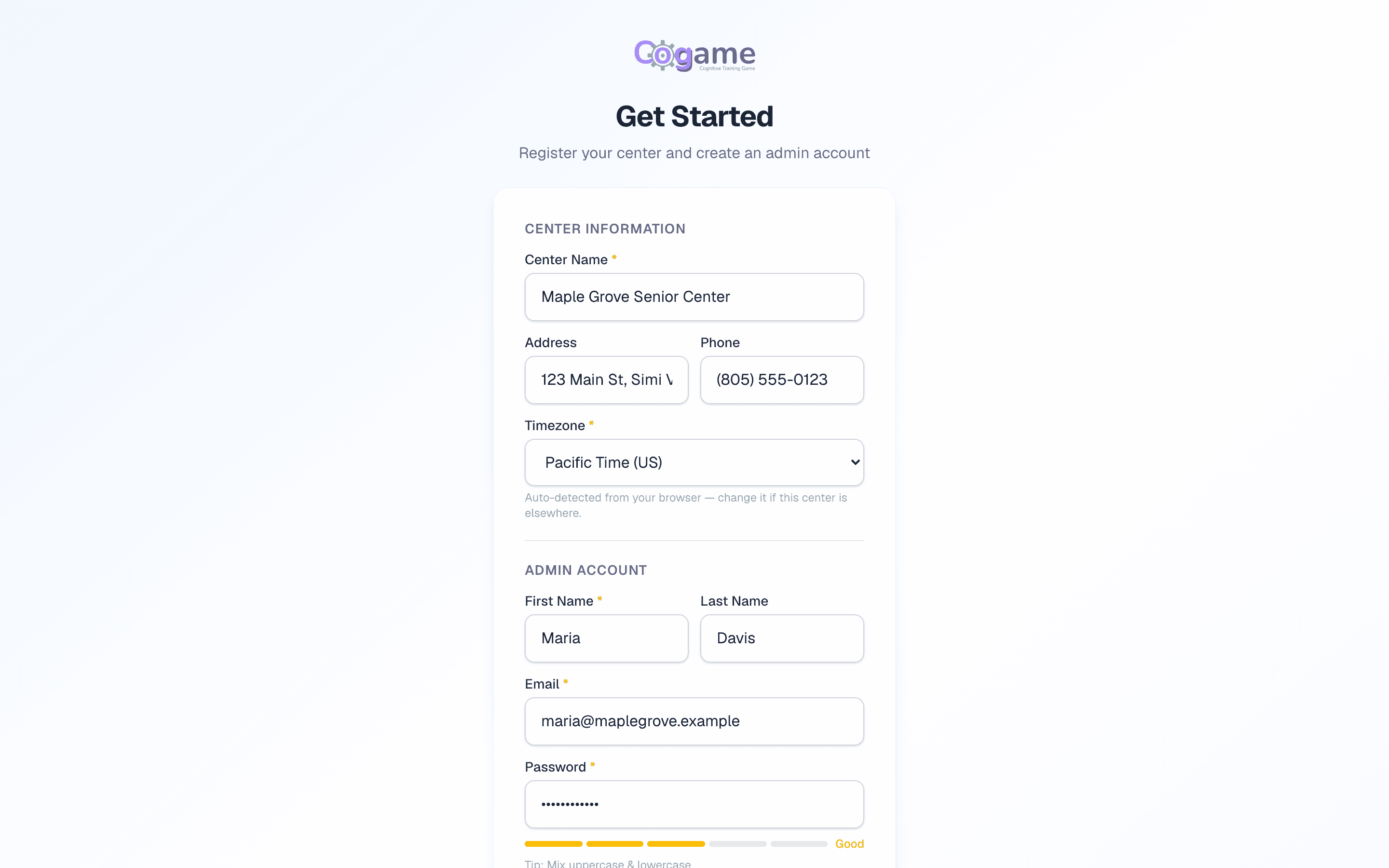
- Go to cogame.ai/signup.
- Enter your center info: name, address, phone, and time zone (we detect it from your browser — check it, since daily stats and training days are cut at midnight in this zone).
- Enter your admin info: name, email, password. This becomes the Owner account — the one person with full access, including billing. You can invite other staff later.
- Click Start Free Trial. We send a verification email to the address you entered. Open it and click the link — until you do, signing in shows "Please check your email to confirm your account."
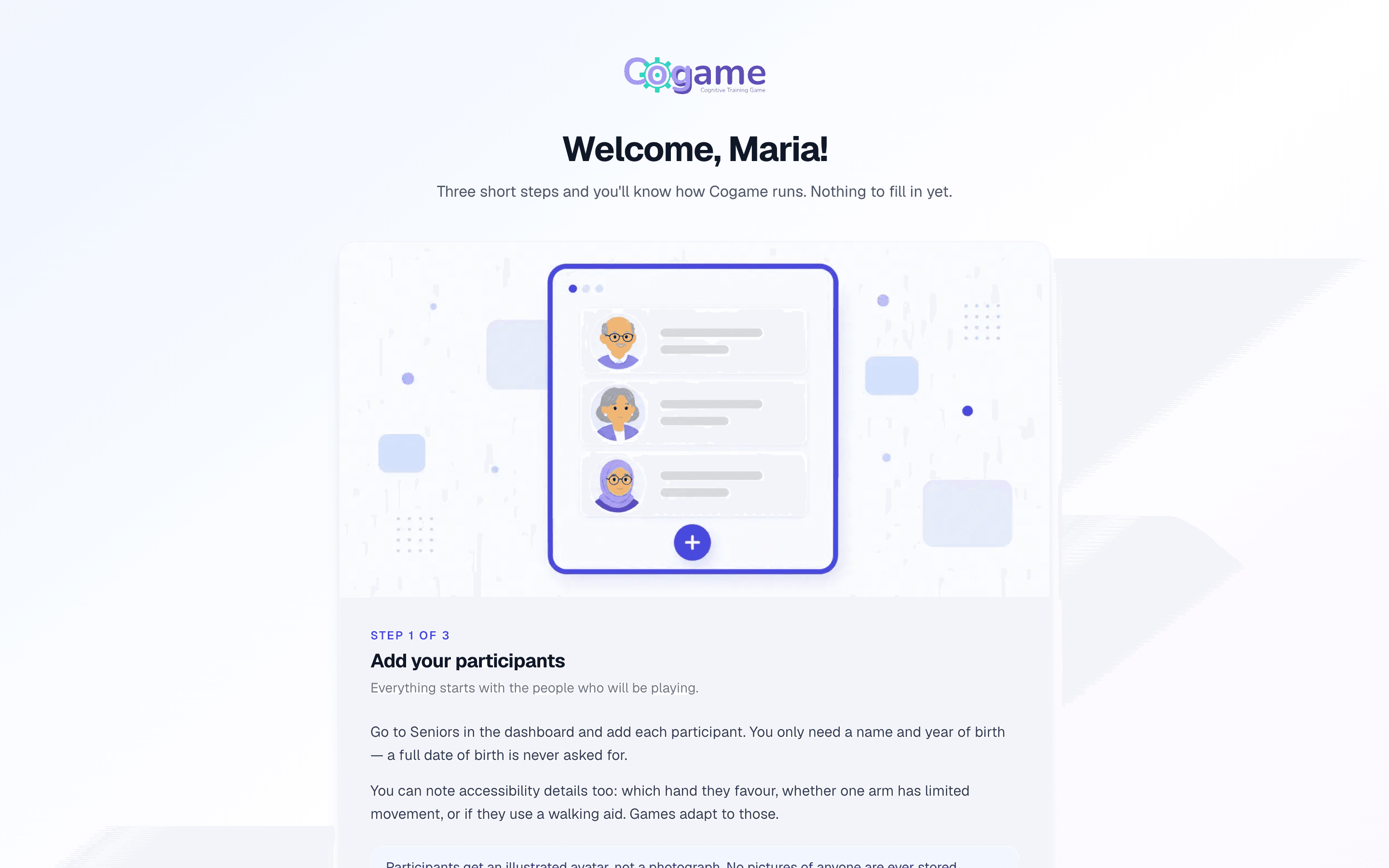
- The link signs you in and shows a short three-step welcome (nothing to fill in). Click Go to dashboard.
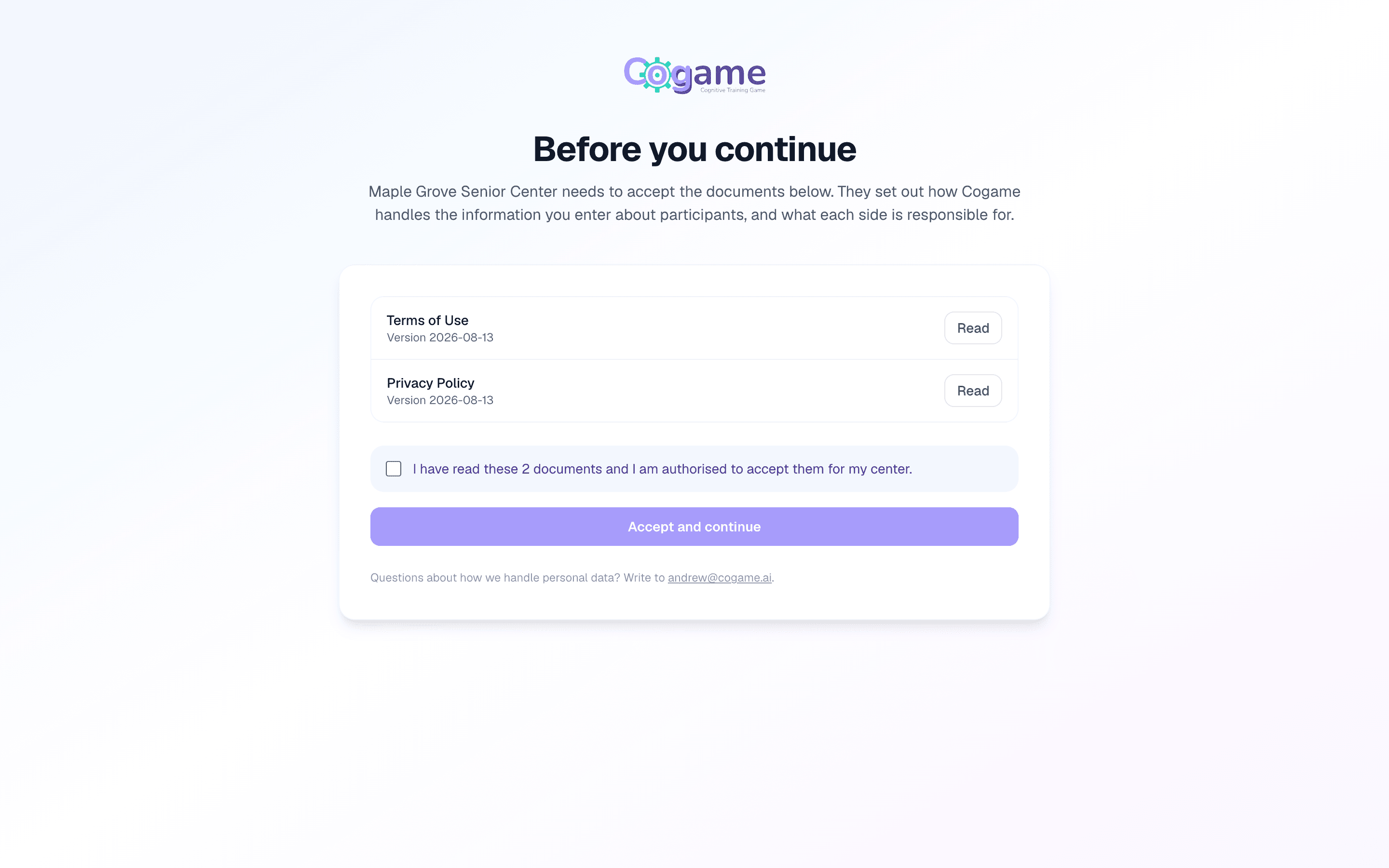
- The first time the dashboard opens you're asked to accept the Terms of Use and Privacy Policy on behalf of your center. Only the Owner can accept; staff who sign in before that see the same page and wait.
Step 2 — Know the two screens
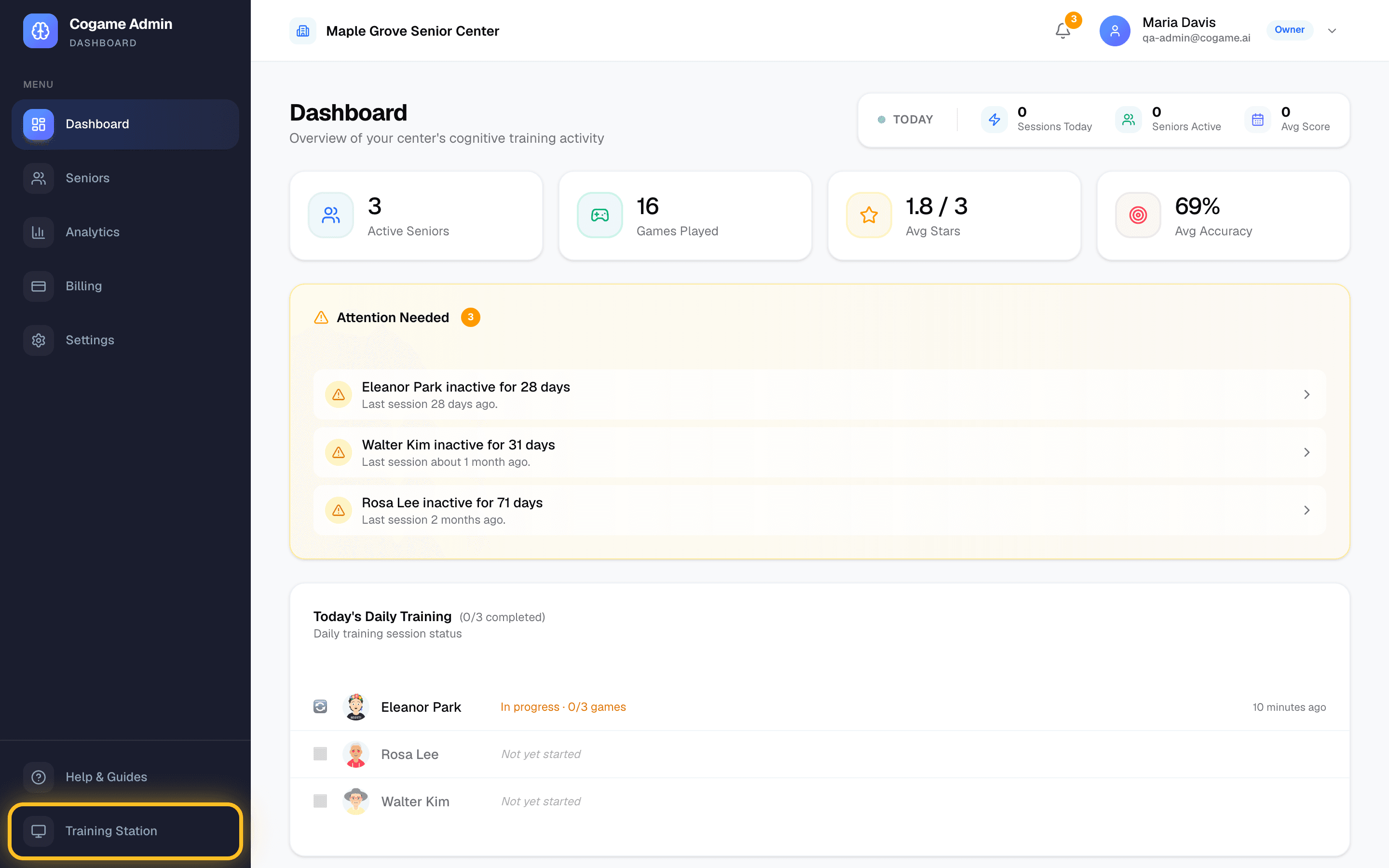
Cogame has two screens, and knowing which is which saves most first-day confusion:
- Admin dashboard at
/admin— for staff. Participants, analytics, reports, team, billing. This is where you land after signup. - Training station at
/play— for participants. The "Who's playing today?" screen, the games, and the camera.
Getting from one to the other: in the admin dashboard, click Training Station at the bottom of the left sidebar (or type cogame.ai/play). On the training station, the Admin button in the top-right corner takes staff back to the dashboard. Both use the same login — sign in once on the station PC and it stays signed in.
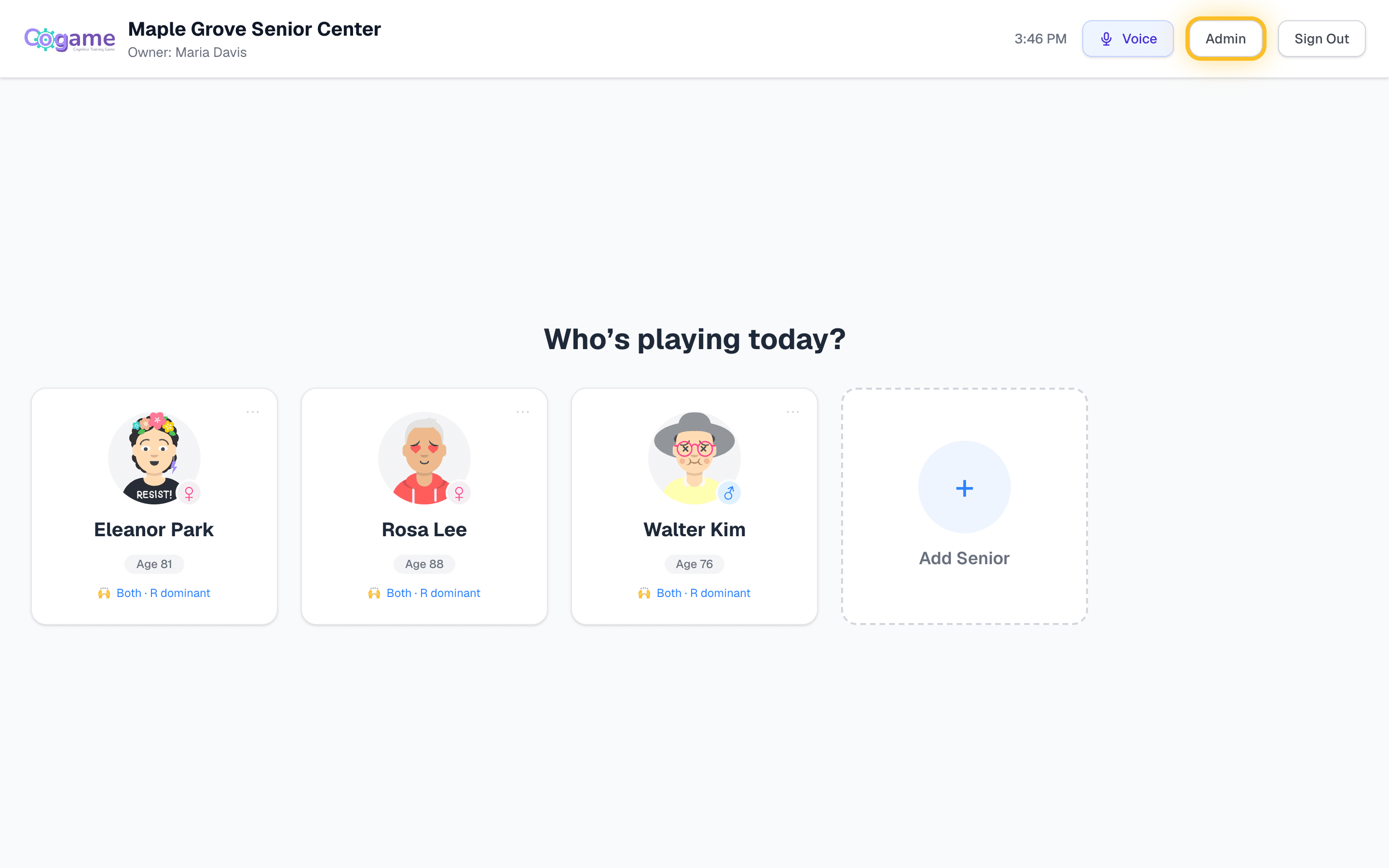
Step 3 — Add your first participant
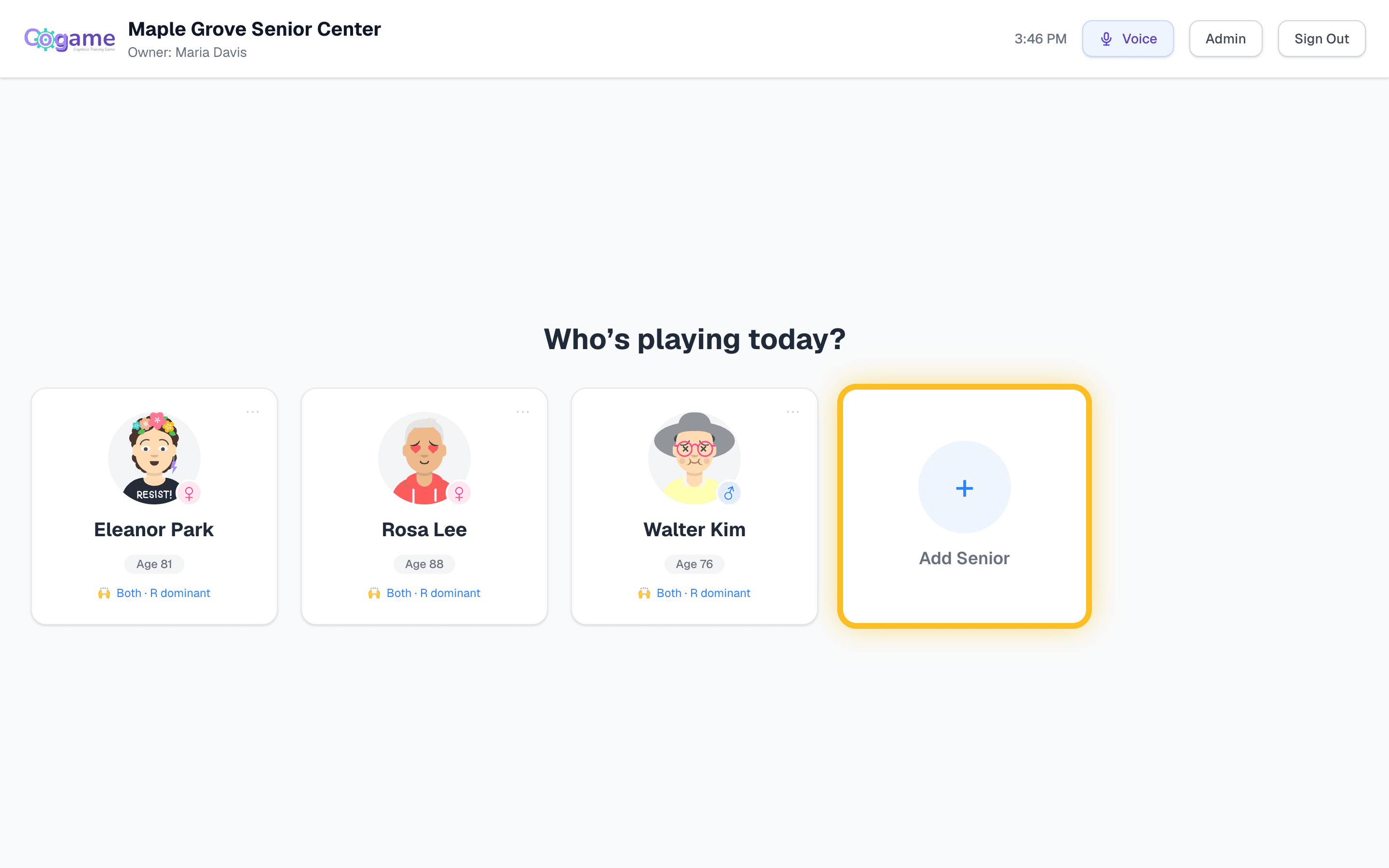
- On the training station (
/play), tap the dashed + Add Senior card at the end of the row. The same form is in the dashboard under Seniors → Add Senior. - Fill in the form. First name is the only required field — the rest can be added later.
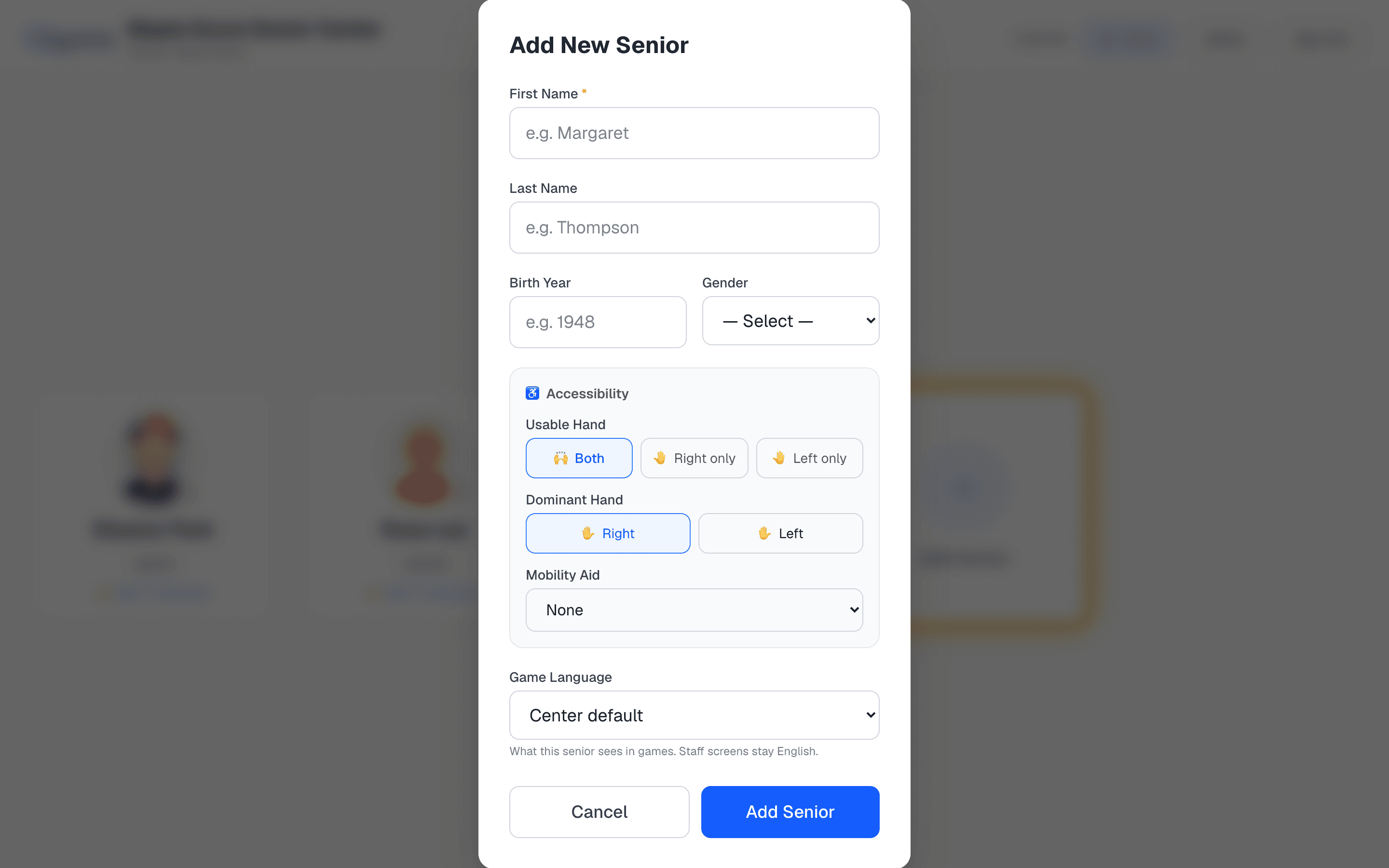
- Nickname — what they actually answer to ("Danny" for Daniel). Voice mode matches on this, so fill it in if it differs from the first name.
- Birth year only — we never ask for a full date of birth.
- Preferred language — games, narration, and the station speak this language for them.
- Accessibility — usable hand, dominant hand, mobility aid. Games shift and judge differently based on these, so it's worth getting right.
- Consent form on file — tick it once your center holds the signed participant consent. It doesn't block anything; it's your own record.
Avatars are friendly cartoon faces generated automatically — no photos are stored. See the Admin Guide for editing and archiving.
Step 4 — Set up the training station
The training station is the screen the participant plays on. Most centers use a TV connected to a PC.
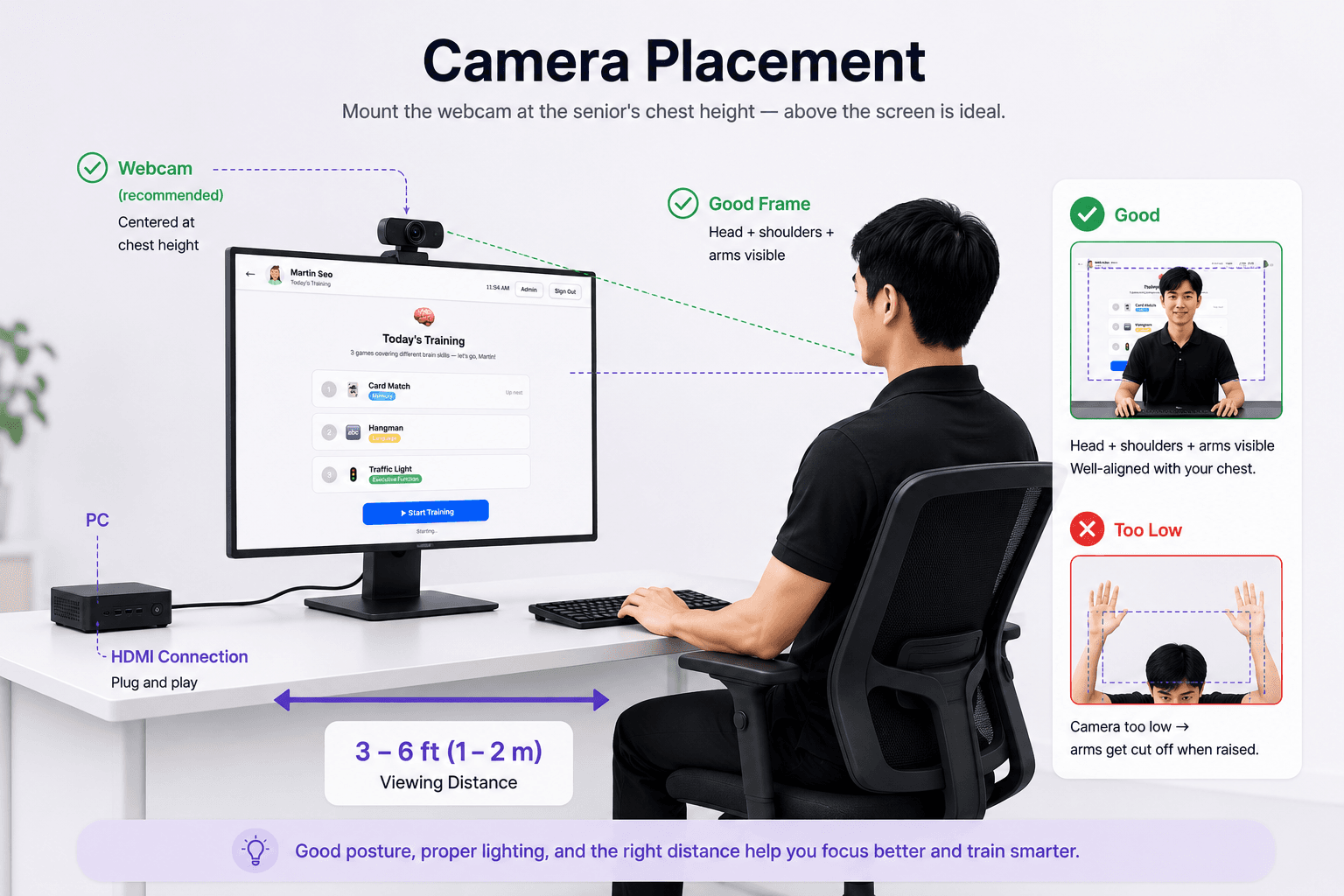
- Connect the PC to the TV via HDMI. Mirror or extend the display.
- Set resolution to 1920×1080.
- Position the webcam centered above or below the screen.
- Open Chrome, go to
cogame.ai/login, and sign in with any staff account. - Click Training Station in the sidebar (or go to
/play). Allow the camera when Chrome asks — once per PC — then press F11 for fullscreen.
For camera height, lighting, and a locked-down kiosk launch, see the Training Station Setup guide.
Step 5 — Run a first session
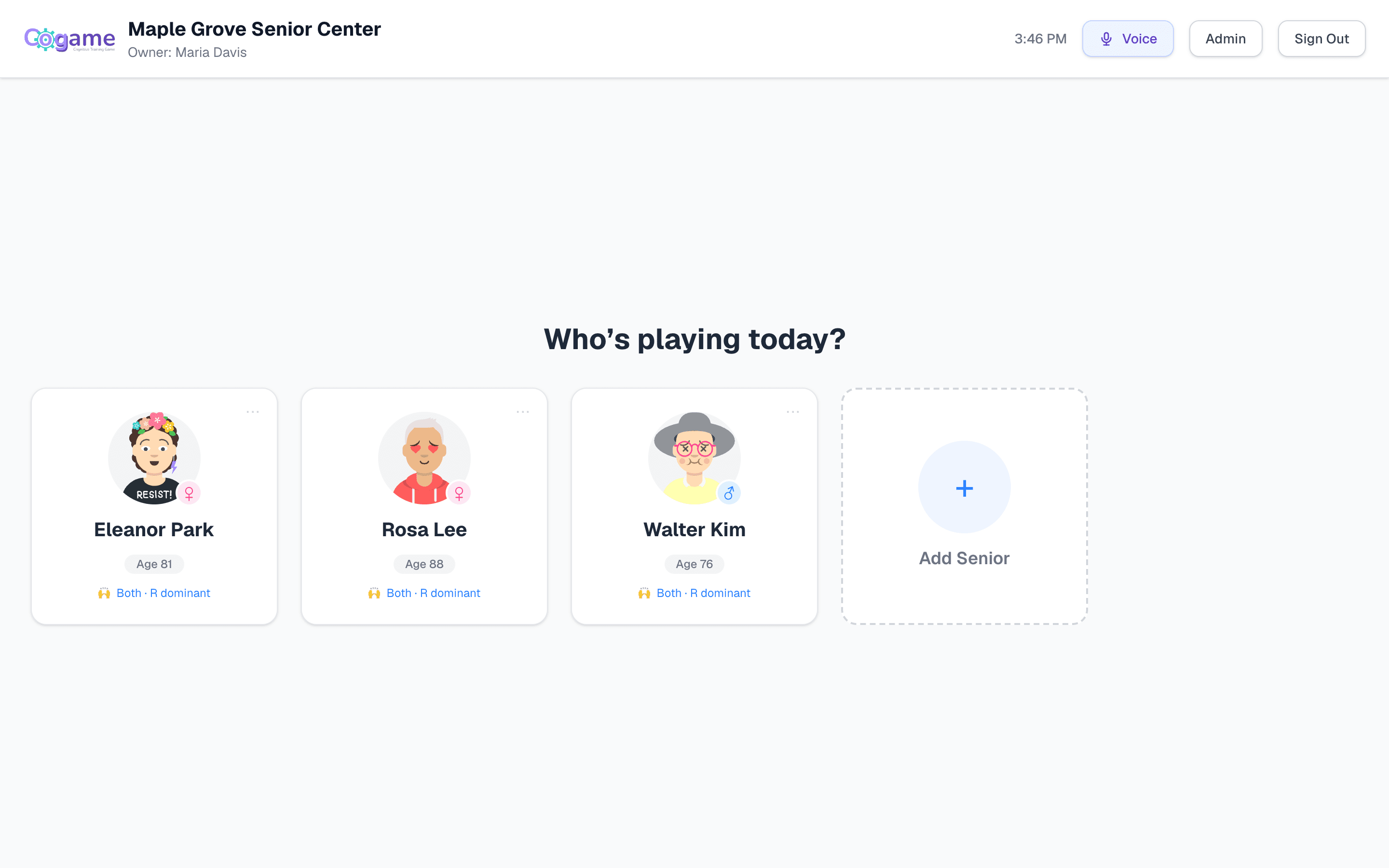
Everything after the first tap is hands-free — participants never need a mouse.
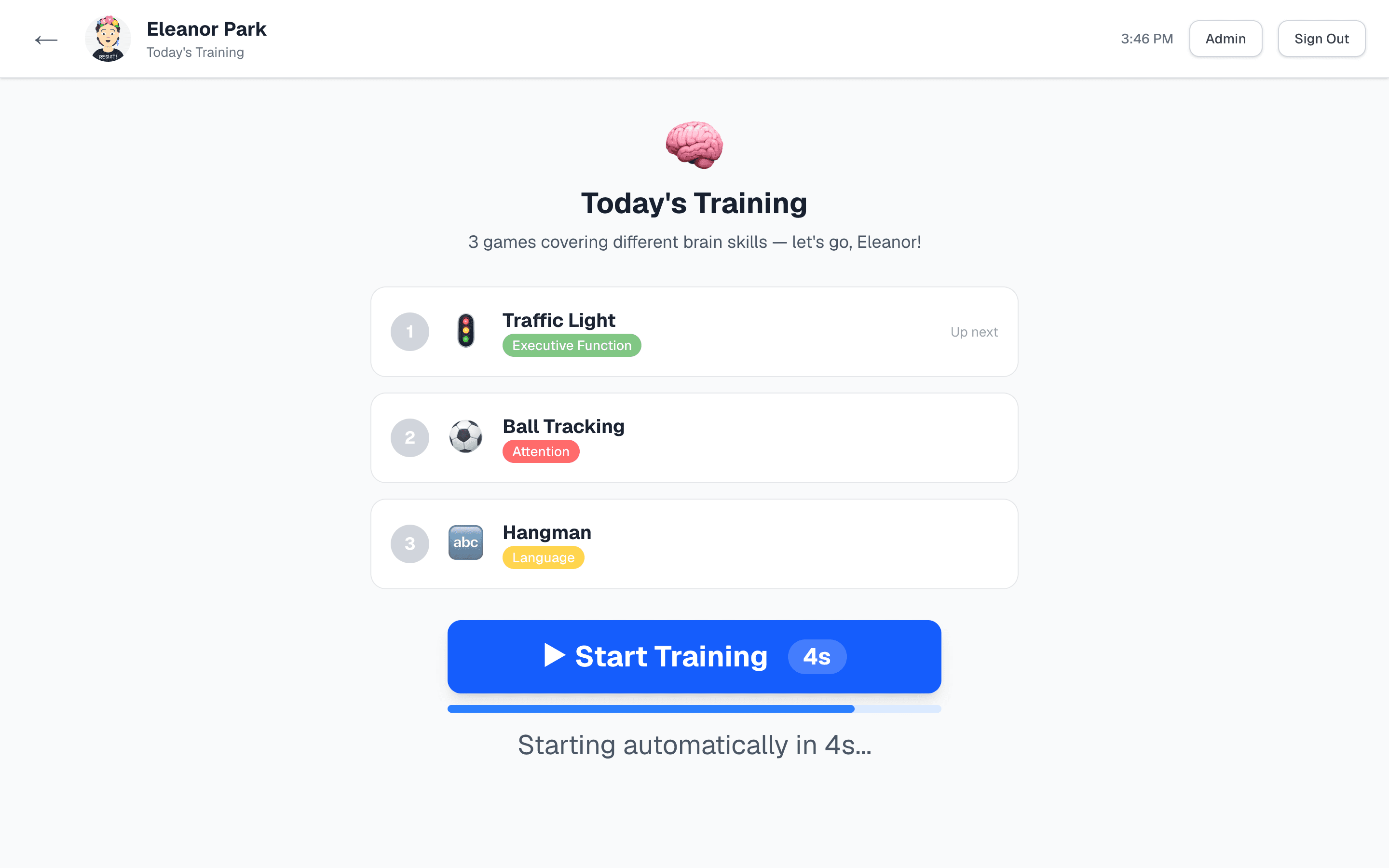
- The participant taps their own card (or staff taps it for them). This opens Today's Training: three games chosen for them across different cognitive areas, which starts by itself after a 5-second countdown.
- Each game opens with a short tutorial they follow by moving — a hand or an arm, depending on the game — then the real round begins.
- Between games a results screen shows stars and the next game, and moves on by itself. After the third game a summary shows the day's stars, then the screen returns to the participant list for the next person.
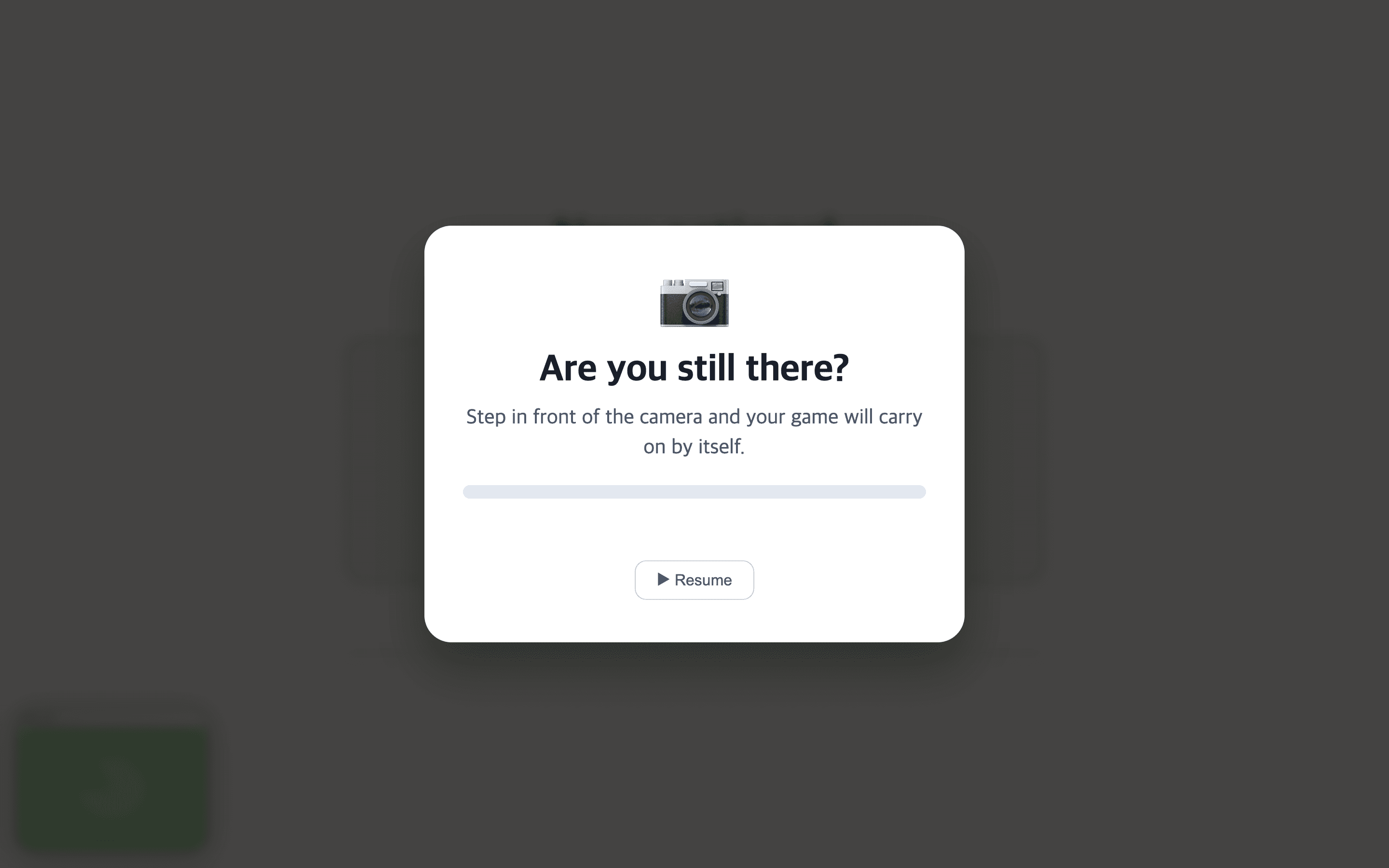
- If they step away mid-game, the station pauses after 3 minutes and shows "Are you still there?" — when they step back in front of the camera, it carries on by itself.
Scores sync to the admin dashboard automatically. Tapping a finished participant's card again offers the same training a second time — repeating is allowed and often requested.
Step 6 — Voice mode (Premium)
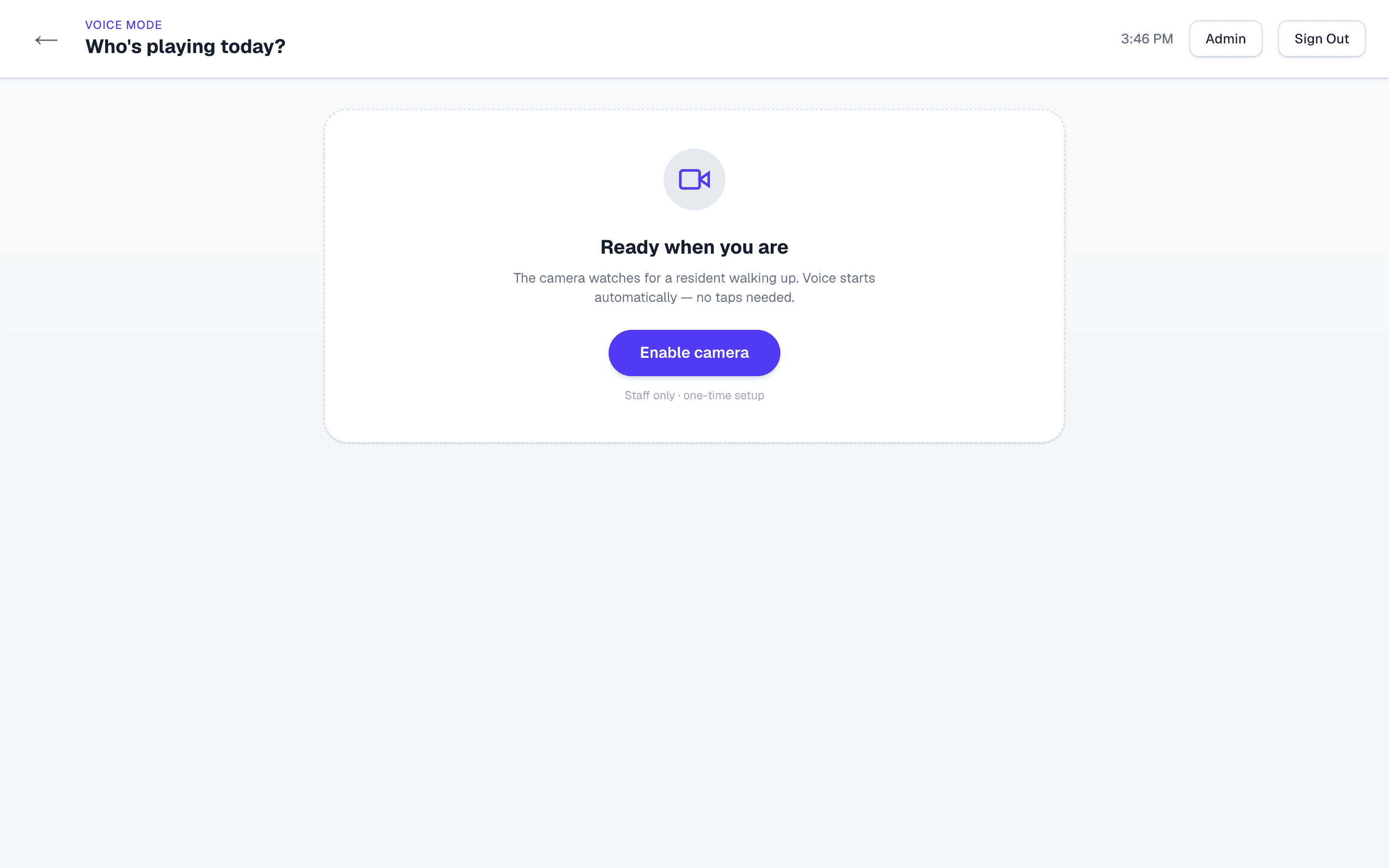
Voice mode lets a participant check in by saying their name instead of finding their card — handy for large groups and for anyone who finds the card wall hard to scan. It's part of the Premium plan, so the button doesn't appear during the trial.
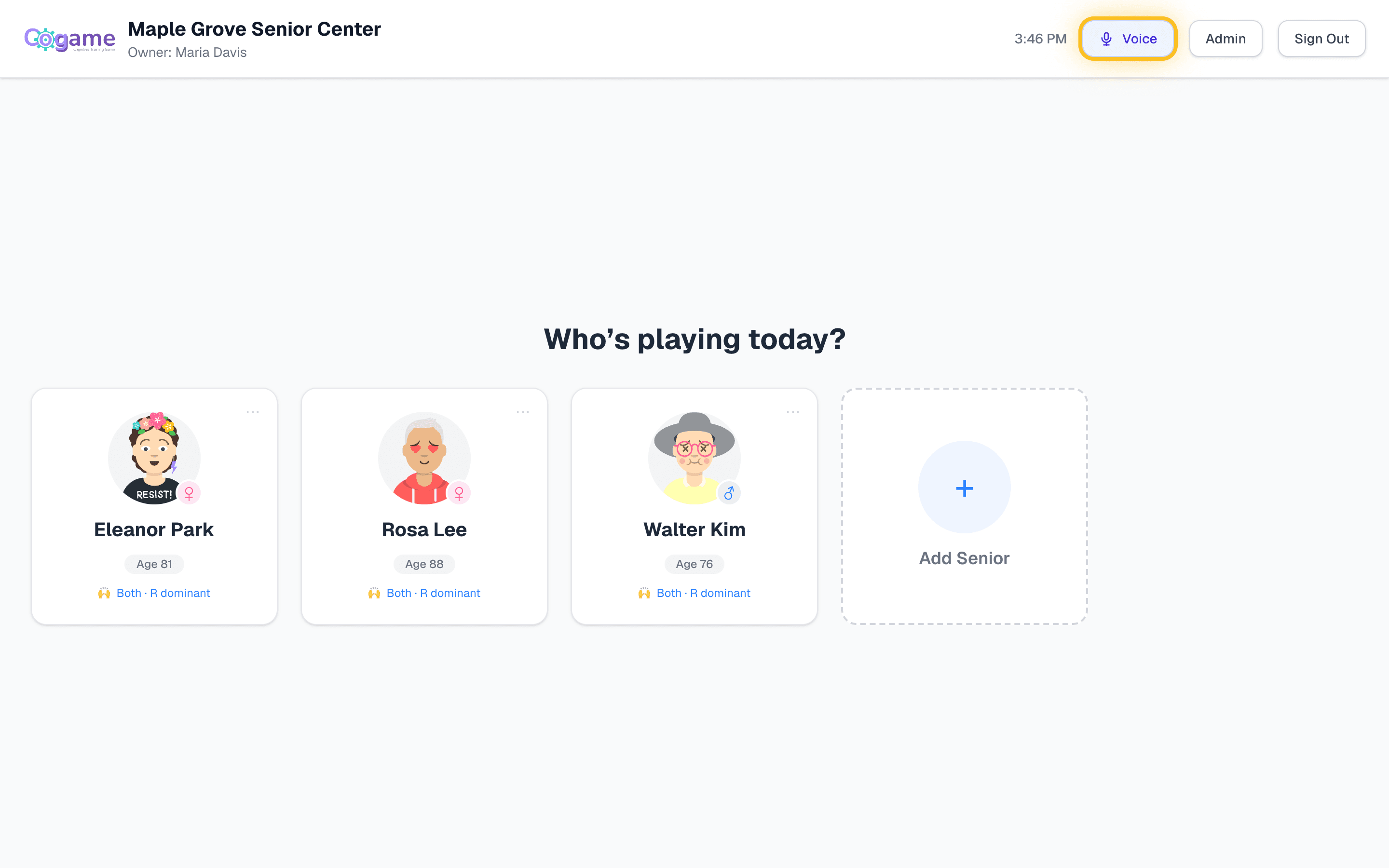
- From
/play, tap the Voice button in the top bar. The first time, staff click Enable camera once. - When a participant walks up, the station asks "What's your name?" and listens. They say their name — first name or the nickname you saved.
- Once matched, they go straight into Today's Training, the same as tapping their card. If two people match, the station shows both and staff tap the right one.
Next steps
- Admin Guide — invite staff, read analytics, print reports
- Training Station Setup — proper camera placement and lighting
- Game Guide — what each game trains and tips for coaching participants
- FAQ — the trial, privacy, medical claims
Still need help?
Email us at contact@cogame.ai — or use the in-app chat bubble if you're signed in. We typically reply within one business day.
Cogame v2026.09.09 · 8c96b34