Help Center
Troubleshooting
Solutions to the problems we see most often. If none of these fix your issue, email contact@cogame.ai and we'll help.
Camera issues
"Allow camera access" popup never appears
Chrome may have auto-blocked the camera from a previous session.
- Click the camera icon in the address bar (right side of the URL).
- Select Always allow on cogame.ai.
- Reload the page.
Camera is detected but the game doesn't respond to motion
Almost always one of three things:
- Wrong camera selected — if the device has multiple cameras, Chrome might be using the wrong one. Click the camera icon in the address bar, check "Camera used", and switch to the external webcam if needed.
- Bad lighting — see Training Station Setup → Lighting.
- Camera too low / too high — MediaPipe needs to see the full upper body. Reposition the camera so both arms fit in frame when extended to the sides.
Camera feed is mirrored backwards or upside down
Cogame intentionally mirrors the video so movements match intuitively (raise right hand → see it on the right side). If it looks upside down, the physical camera is probably mounted upside down; rotate it 180°.
Camera works everywhere else but not in Cogame
Check that no other browser tab or app is currently using the camera (Zoom, Teams, Meet, etc.). Only one app can access the camera at a time.
Performance / lag
Game feels slow or stutters
- Close other browser tabs and apps, especially video calls.
- Make sure Chrome hardware acceleration is enabled: chrome://settings → System → "Use graphics acceleration when available".
- On older PCs, try lowering the browser window to 1280×720 instead of full 1920×1080 — halves the pixel load.
- Check CPU usage. If it's pegged at 100% during a game, the PC may be too old for 3D games (Beat Highway / Autumn Trail). Use 2D games instead.
Game freezes mid-session
Refresh the page (F5). The senior's score up to the freeze point is saved offline and will sync when you reload.
Login & account
I didn't get the verification email
- Check your spam folder — the verification email is sent automatically and may land there.
- Corporate email systems sometimes quarantine external emails. Ask your IT team to allowlist
cogame.aiandyoungandx.com. - Still nothing? Email contact@cogame.ai and we'll manually verify your account.
"Invalid credentials" on login
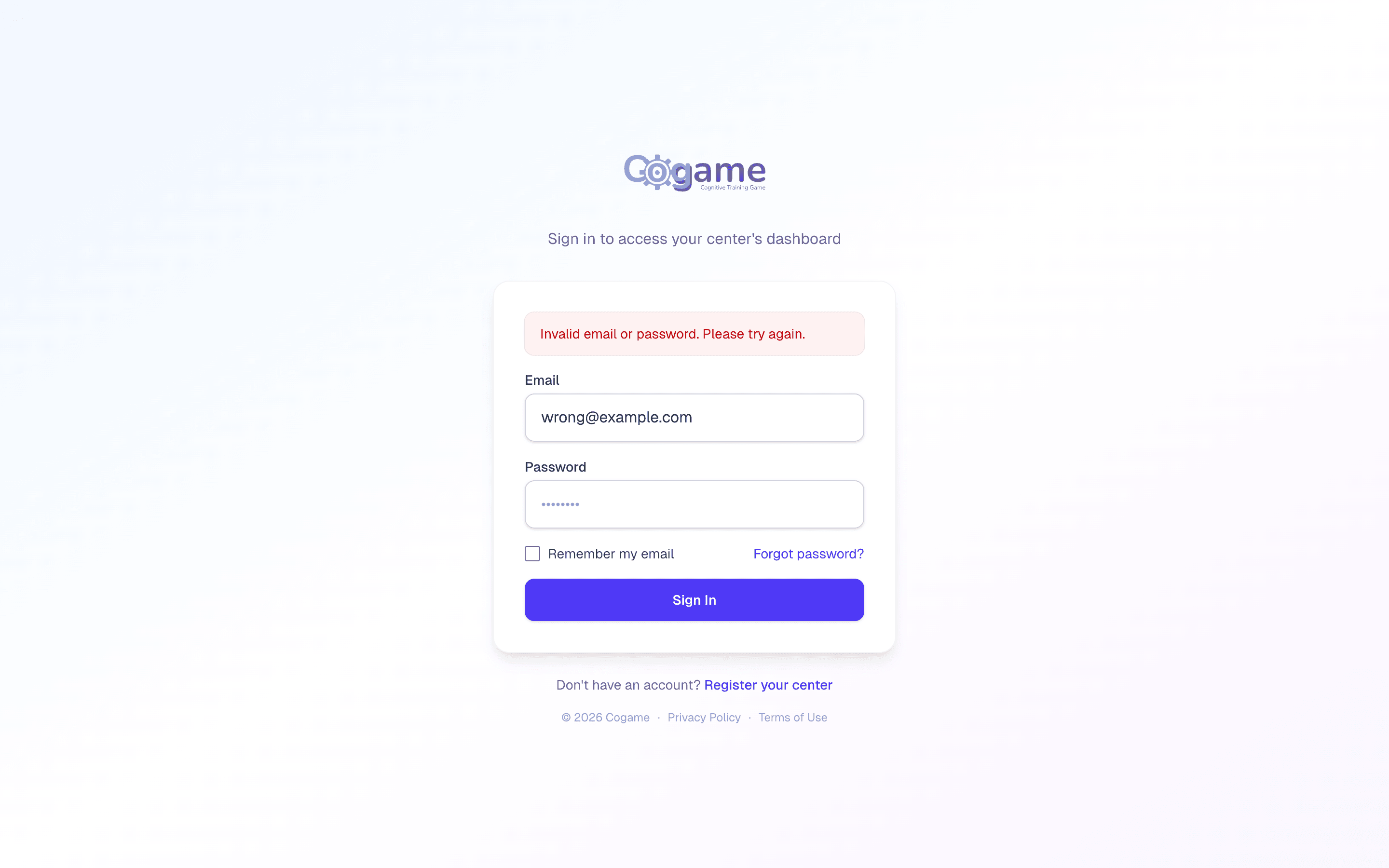
- Check caps lock.
- Use the Forgot password link on the login page.
- Verify you're using the exact email address from signup (no trailing spaces).
I signed in and landed on a "Terms of Use" page instead of the dashboard
Your center hasn't accepted the current Terms and Privacy Policy yet. Only the Owner can accept — once they do, everyone gets through. The training station keeps working in the meantime.
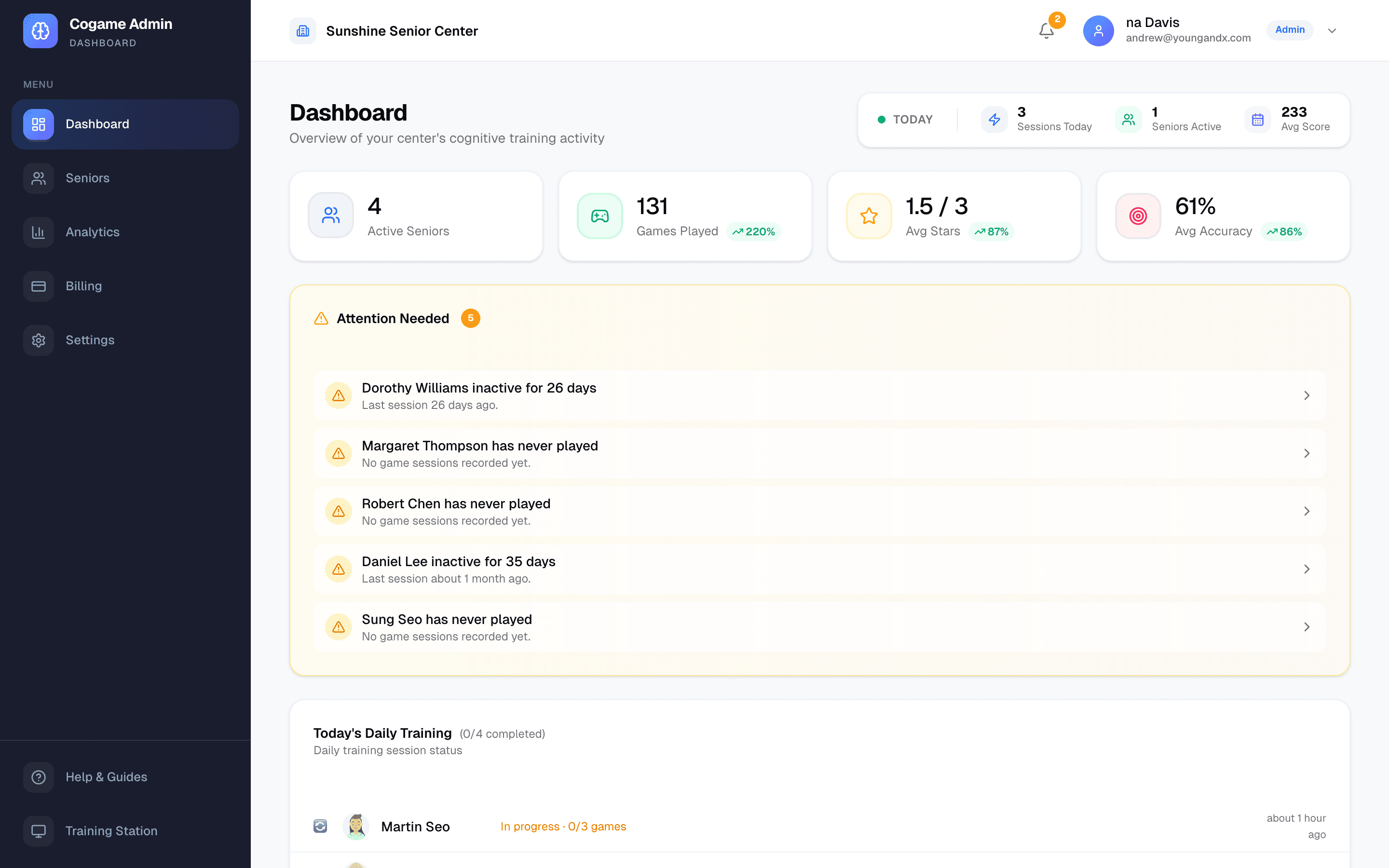
I can open the dashboard but not Settings or Billing changes
Your role is staff. Settings is for Owner and Admin; billing changes are Owner only. Ask an Owner or Admin to change your role from /admin/settings → Team.
Training station issues
Station shows "Trial Period Ended"
The free trial has run out. Nothing is lost — the dashboard still works. The Owner sets up a plan with us (or, for centers brought on by a partner, the partner converts the center), and the station resumes immediately.
Game shows "Are you still there?" and a progress bar
Nobody was in front of the camera for 3 minutes, so the game paused. Step back into the frame and stay for two seconds — the bar fills and the game carries on by itself. Staff can also press Resume. After 10 minutes with nobody there, the station returns to the participant list.
Game paused after switching windows
Games pause when the browser tab is hidden (a notification, Alt-Tab) and resume on their own when it comes back. If a pause was started by hand, it stays paused until Resume.
Station shows the wrong center's seniors
You're signed in under a different account. Click Sign out, check the current user in the top right, and sign back in with the correct account.
Screen turns off in the middle of a session
- Disable display sleep in the OS: Windows → Settings → System → Power & battery → Screen; Mac → System Settings → Displays → Lock Screen.
- Set both "Turn off screen" and "Sleep" to Never while the station is plugged in.
Seniors can accidentally exit fullscreen
This is a safety feature of the browser — hitting Esc exits fullscreen by design. To harden the station against curious seniors:
- Launch Chrome with the
--kioskflag (see Training Station Setup → Launching) - In this mode, Esc no longer exits. Only Alt+F4 (Windows) or Cmd+Q (Mac) closes the browser.
Data sync issues
A senior's session score isn't showing on the dashboard
- Refresh the dashboard — new scores appear within 1–2 seconds of upload.
- If the station was offline when the session finished, the score is queued in the station's local storage. Reconnect to the internet on the station and the queue flushes automatically.
- If the score is still missing after reconnecting, email us with the senior name and approximate time — we can recover from our logs.
Dashboard charts are empty
New centers won't see chart data until the first few sessions have been played. Most charts need at least 5–10 sessions across several days before trends appear.
Still stuck?
Email contact@cogame.ai with:
- The center name and your staff email
- Which game / page the issue happens on
- A screenshot if possible
- Your browser and operating system
We typically reply within one business day.
Still need help?
Email us at contact@cogame.ai — or use the in-app chat bubble if you're signed in. We typically reply within one business day.
Cogame v2026.09.09 · 1db07b8