Help Center
Admin Guide
How to manage seniors, invite staff, read analytics, print reports, and handle billing from the admin dashboard at /admin.
First login and the two screens
The account that signed up is the Owner. The first time the dashboard opens, the Owner accepts the Terms of Use and Privacy Policy on behalf of the center — staff who sign in before that see the same page and wait. It happens once (and again only when we publish a new version).
Cogame is two screens with one login: the admin dashboard (/admin, for staff) and the training station (/play, for participants). To open the station from the dashboard, click Training Station at the bottom of the left sidebar. On the station, the Admin button in the top-right corner brings staff back. Every staff role can use both; what differs is what they can change (see the permissions matrix).
A typical week as an admin
Most centers settle into a 5–10 minute daily check-in plus one longer review per week. Here's the rhythm that's worked for the centers we've onboarded:
- Every morning (2 min) — open
/admin. Glance at today's activity and the attention list. If a senior on the list is in the building today, plan to invite them to a session. - After each session (1 min) — when a senior finishes at the training station, their score syncs automatically. No action needed unless they hit a problem (see Troubleshooting).
- Friday review (10 min) — open
/admin/analytics, switch to 7d. Skim engagement trends and the leaderboard. Note which seniors dropped off and follow up next week. - Monthly (15 min) — open each active senior's detail page and click Print Report. File the PDFs or email them to family.
- Quarterly — review your Baseline date on the Analytics page (Program Overview → Baseline comparison card). Most centers leave it set to program launch and never change it; resetting it discards the before/after comparison.
Dashboard overview
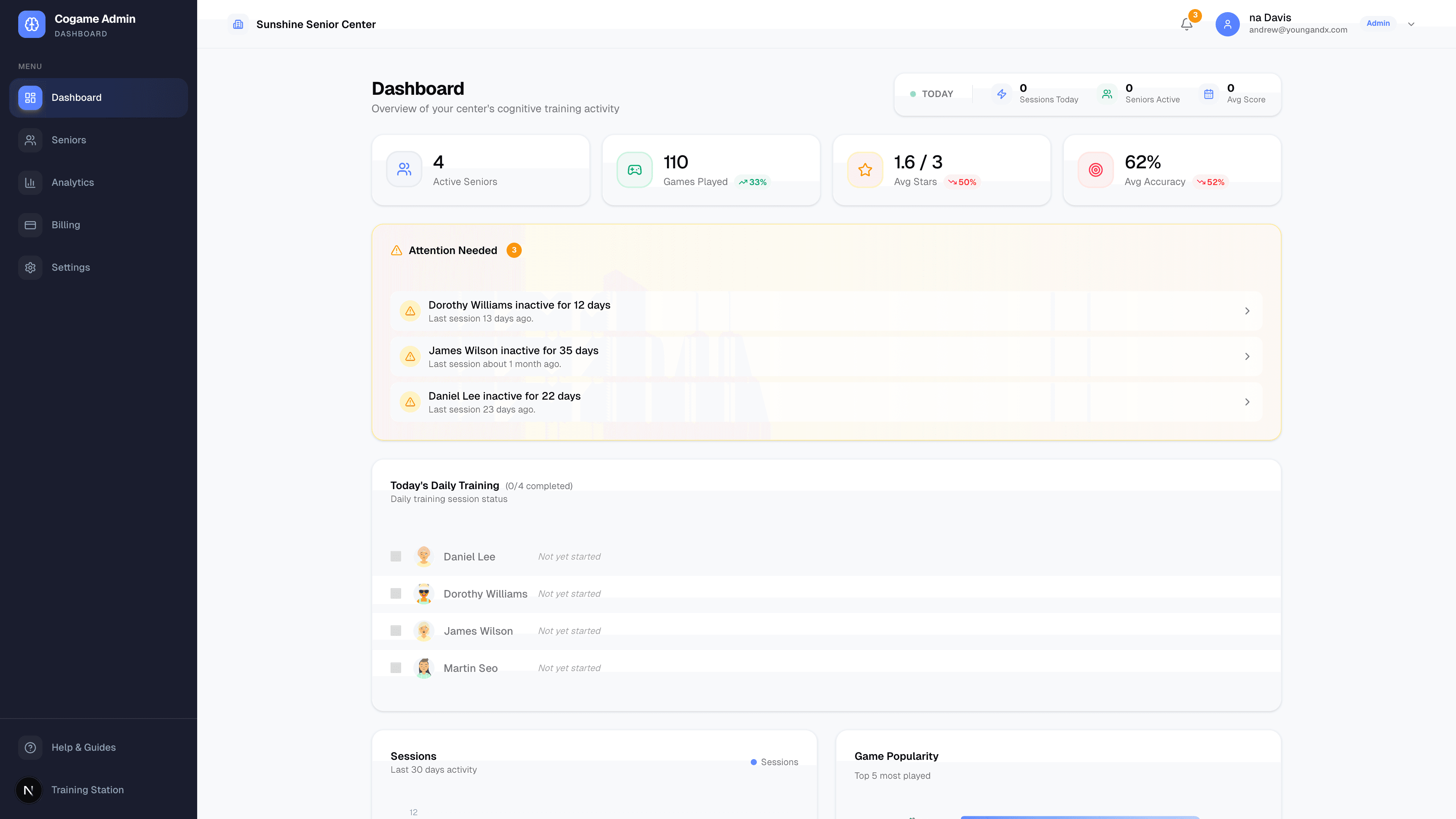
The dashboard home (/admin) shows the key signal at a glance:
- KPI cards — total seniors registered, active in the last 7 days, participation rate, retention rate
- Today's activity — sessions played today
- Attention list — seniors who haven't played recently or whose scores have dropped
Click any card to drill down into the relevant section.
Managing seniors
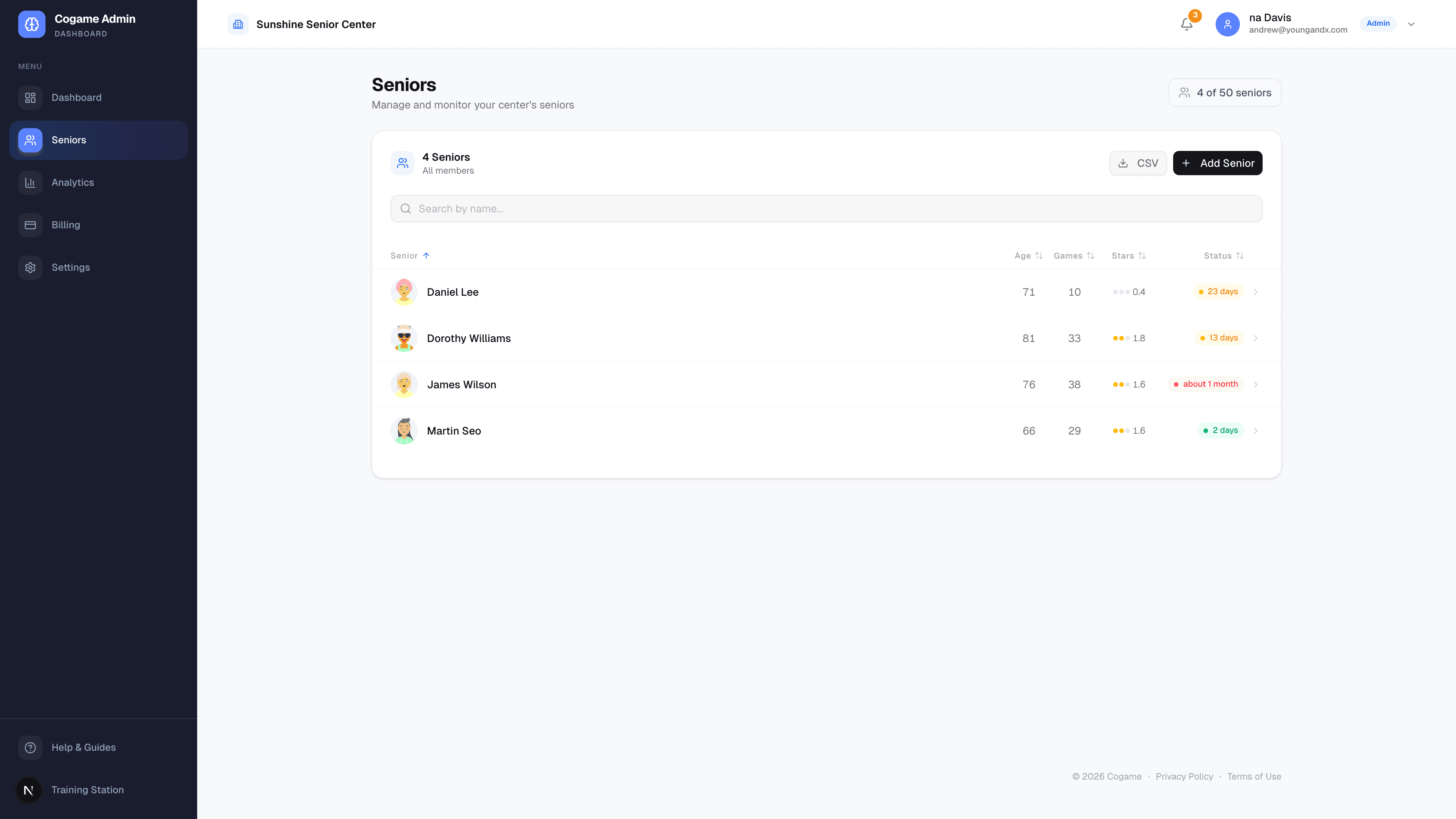
Go to /admin/seniors.
Add a new senior
- Click + Add Senior in the top right.
- First name is the only required field. Everything else can be added later: last name, nickname (what they answer to — voice mode matches on it), birth year (never a full date of birth), gender, preferred language (games and narration switch to it), phone, emergency contact, notes.
- Accessibility — usable hand, dominant hand, mobility aid — changes how games are positioned and judged, so fill it in when you know it.
- Consent form on file — tick once your center holds the signed participant consent. It never blocks saving; it's your own record, and the detail page shows "Not recorded" until you tick it.
- Save. The avatar is a cartoon face generated automatically — no photo is stored.
Edit or remove
- Click on a senior row to open their detail page.
- The Edit button updates info; Archive hides them from the training station.
- Archived seniors keep their history but no longer appear on the profile picker.
Accessibility settings (important!)
These settings affect how games are positioned and judged for each senior:
- Dominant hand — games shift the play area away from the hand the senior raises, so the hand doesn't block the screen
- Right/left arm able — for seniors with limited mobility on one side, games adapt to use only the available arm
- Mobility aid — wheelchair, walker, cane, or none (recorded for center staff reference)
Senior detail page
Click any senior's name on /admin/seniors to open their detail page at /admin/seniors/[id]. This is where you'll spend most of your monitoring time. The page is laid out top-to-bottom as:
- Summary stats strip — total sessions, total play time, average stars, last active. The fastest read on whether someone is engaged.
- Profile card — name, age, accessibility settings, notes. Edit from here if their dominant hand or mobility changes.
- Cognitive Profile (radar chart) — current strength across the 6 cognitive areas (Memory, Attention, Executive, Language, Visuospatial, Coordination). Use it to spot which area a senior should train more.
- Activity heatmap — a calendar-style grid of which days they played. Gaps stand out immediately.
- BCI Score — Brain Cognitive Index, our composite score combining 5 cognitive areas. The card compares current vs baseline.
- Daily Training — streak, today's minutes, weekly target progress.
- External Assessments — log MoCA, MMSE, or other clinical scores here to correlate with Cogame trends. Optional.
- Cognitive Trend chart — the 6 cognitive areas plotted over time. The single most useful chart for showing progress to family.
- Game History table — every session, sortable. Click into a row to see per-round detail.
Generating a personal monthly report
- From the senior's detail page, click Print Report in the top right.
- The page renders client-side to a multi-page PDF (cognitive trends, recent sessions, AI insights if your plan includes them). Nothing is sent to a third-party PDF service.
- Save or email the PDF to family. The detailed report URL is
/admin/seniors/[id]/report.
- 14+ day gap in the activity heatmap → reach out, check in, schedule a session.
- BCI Score dropping >10% vs baseline → check the cognitive trend chart for which area; pick games in that category.
- Stuck at lowest level for 2+ weeks → try a different game in the same cognitive area, or check accessibility settings.
- One area lagging on the radar → the Game Guide lists which games train each area.
Inviting staff
Go to /admin/settings → Team (Owner and Admin only).
- Click Invite Staff.
- Enter their email and pick Staff or Admin (see the matrix below).
- They receive an invitation email. The link asks them to set a password and then signs them in — no separate signup, and they land in the same center.
Permissions matrix
| Capability | Owner | Admin | Staff |
|---|---|---|---|
| Run training station (/play) | ✅ | ✅ | ✅ |
| Add / edit / archive seniors | ✅ | ✅ | ✅ |
| Record that a consent form is on file | ✅ | ✅ | ✅ |
| View senior detail & print reports | ✅ | ✅ | ✅ |
| Generate AI insights (Premium) | ✅ | ✅ | ✅ |
| View analytics dashboard | ✅ | ✅ | ✅ |
| Invite or remove staff | ✅ | ✅ | — |
| Set the program baseline date (Analytics) | ✅ | ✅ | ✅ |
| Permanently delete a participant’s data | ✅ | ✅ | — |
| Open Settings (center info, kiosk, team) | ✅ | ✅ | — |
| Edit center info & kiosk settings | ✅ | — | — |
| Manage billing & payment method | ✅ | — | — |
| Cancel subscription | ✅ | — | — |
Most centers have one Owner (the person who signed up and pays), 1–2 Admins (program directors), and the rest as Staff (caregivers running daily sessions).
To remove a staff member, click their row → Remove from team. Their past actions stay in audit logs but they lose all access immediately.
Reading analytics
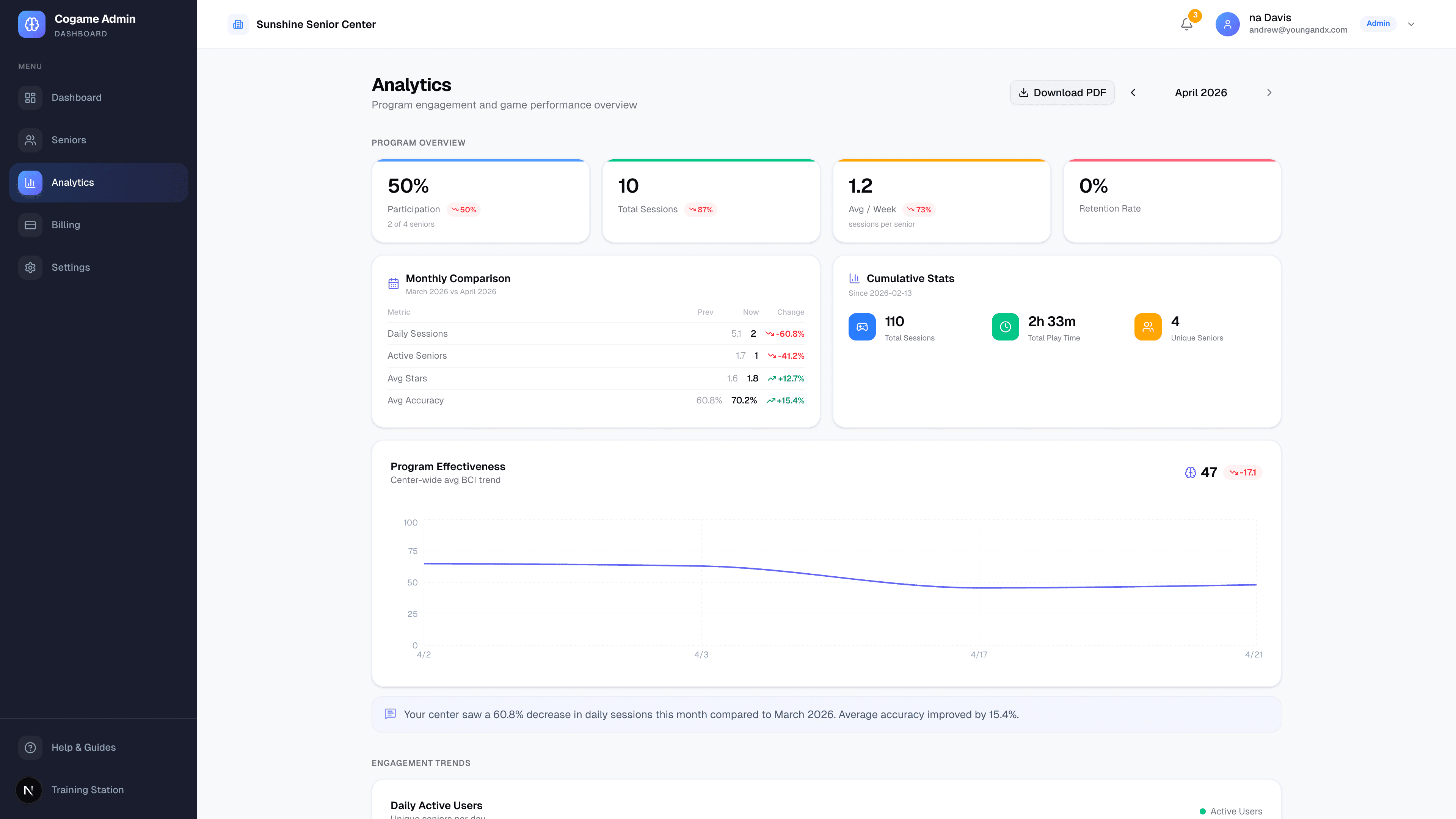
Go to /admin/analytics. The page is organized into 4 sections:
1. Program Overview
- Participation KPIs — registration, activity, engagement, retention
- Baseline comparison — current period vs the "baseline date" you set in Settings (typically your program start date)
- Cumulative stats — total sessions, total play time, etc. since launch
2. Engagement Trends
- Daily activity chart — sessions per day, last 30/90 days
- Time heatmap — which hours of the day get the most play (helps you schedule group sessions)
- Session duration distribution — typical session length
- Senior playtime ranking — top engagers
3. Game Performance
- Leaderboard — which games are most/least played
- Star distribution — overall difficulty calibration check
- Game diversity — variety of games each senior plays (avoids boredom)
- Level distribution — easy/medium/hard split
4. Attention & Action Items
Lists seniors who need staff attention — haven't played in 14+ days, large score drops, or stuck at lowest level.
Printing reports
Center-wide PDF report
- Go to
/admin/analytics. - Click Print Report in the top right.
- The page renders to a multi-page PDF including all charts and the action list. Save or print.
Individual senior report
- Go to
/admin/seniors→ click the senior's name. - Their detail page shows cognitive trends, recent sessions, and AI-generated insights (if enabled).
- Click Print Report to export their personal monthly summary.
Both reports are generated client-side (html2canvas + jsPDF). Nothing is sent to a third-party PDF service.
Billing
Go to /admin/billing. Everyone can open it; only the Owner can change anything.
- Current plan, billing date, payment method on file
- Update payment method (handled securely by Paddle)
- Invoice history — download PDFs of past charges
- Cancel subscription — takes effect at the end of the current period
Cogame uses Paddle as our payment processor. Paddle is the merchant of record, so your invoice comes from Paddle.com and they handle sales tax / VAT compliance worldwide.
Settings
Go to /admin/settings:
- Center info — name, address, phone, and time zone. The time zone decides where a "day" ends for daily training, stats, and the trial, so check it if your center moved or signed up from elsewhere. Owner only.
- Kiosk — default game level for new participants and how many idle minutes before the training station signs itself out. Owner only.
- Team — staff members & invitations (see above)
The Baseline date lives on the Analytics page (Baseline comparison card), not here.
Next
Still need help?
Email us at contact@cogame.ai — or use the in-app chat bubble if you're signed in. We typically reply within one business day.
Cogame v2026.09.09 · 1db07b8